What diners see when they scan
A walk through what your customer sees the moment they scan a table QR code.
Understanding the diner side helps you set your menu up well. Here is what happens from the scan to the menu.
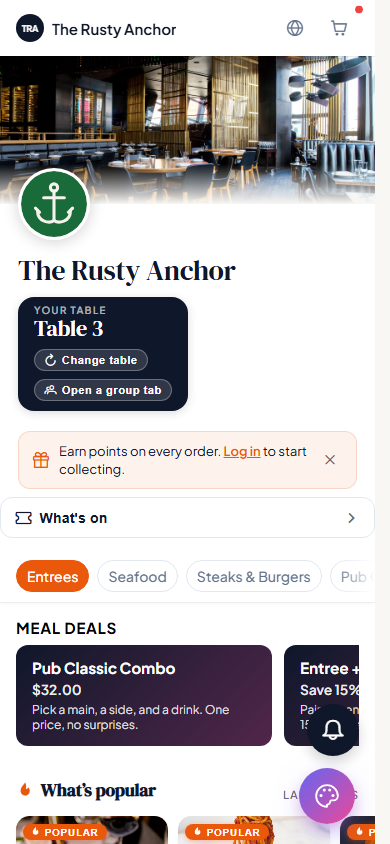
The scan
A diner points their phone camera at the QR code on the table. No app to download: it opens straight in their browser. Tapimo works out which venue and which table the code belongs to, shows Finding your table..., and lands them on your menu.
If a code is turned off or out of date, the diner sees a clear message (for example This QR code isn't active) telling them to grab a staff member.
The menu screen
At the top, the diner sees your cover image, logo and venue name, and a badge showing your table (or "Your room" for hotels). Below that:
- A row of category chips to jump around your menu.
- Dietary filter chips: Gluten free, Vegan, Vegetarian and No alcohol, so a diner can narrow the menu to what suits them.
- Optional strips like Meal deals, Your favourites (for diners with an account), and What's popular from the last 7 days.
Each item shows as a card with its photo, name, price, description, and small dietary badges. An item you have marked out of stock shows Sold out and cannot be tapped.
Dietary badges
On each item, diners see short badges in this order: GF (gluten free), VG (vegan), V (vegetarian), and 18+ (alcoholic). Only the ones that apply show. This is why ticking an item's dietary flags accurately matters: it drives both the badges and the filters.
What's next
From here a diner taps an item to customise and add it to their cart. See How diners order and pay.